
You can extract metadata from any image using the popular tool known as ExifTool . This tool allows you to retrieve information such as the image creation date and time, camera type, capture location, and other details.
The tool is also used for security inspections to uncover hidden data—such as GPS coordinates or device and software information—that is not immediately visible to the user. It is valuable for digital forensics, file verification, and image analysis, and is widely used by photographers, developers, and website administrators to manage and inspect metadata.
**How to use it:**
To inspect a specific image, download the tool from the official ExifTool website and select the version compatible with your device. After downloading, you will see a compressed file; extract it to reveal another compressed file inside, and extract that one as well.
You will see a file named `exiftool(-k).exe`; rename it to `exiftool.exe`.
Ensure the tool's files are located on your desktop, then run `exiftool.exe`. You can use the tool by dragging and dropping images onto it, or by using the Command Prompt (CMD) with the following commands:
`exiftool.exe -ver`
This displays the program version. If you encounter an error, ensure you are in the correct directory (the desktop) within the Command Prompt.
`2/ exiftool.exe -a -u -g1 "image.jpg"`
Replace the image name and extension in the command above and run it in CMD to inspect the image. This will display details such as image dimensions, creation date, location, and much more. To find the location where the photo was taken, enter the following command:
3/ exiftool.exe -gps:all "image.jpg"
If you encounter errors—assuming the tool's files are installed on your desktop—enter the command `cd /d C:\Users\User\Desktop` to navigate to the desktop where the tool's files are located.
Enter the following command to test the desired image (make sure to change the image name and extension before proceeding):
"C:\Users\User\Desktop\exiftool.exe" "C:\Users\User\Desktop\noah.jpg"
You should then see detailed information about the image.
To perform a comprehensive analysis of the image, enter the following command:
exiftool.exe -a -u -g1 "noah.png"
This explanation is for educational purposes only. I assume no responsibility for any illegal or unauthorized use. You may apply this explanation only to systems or assets that belong to you.
Comments
Related articles
- Cybersecurity
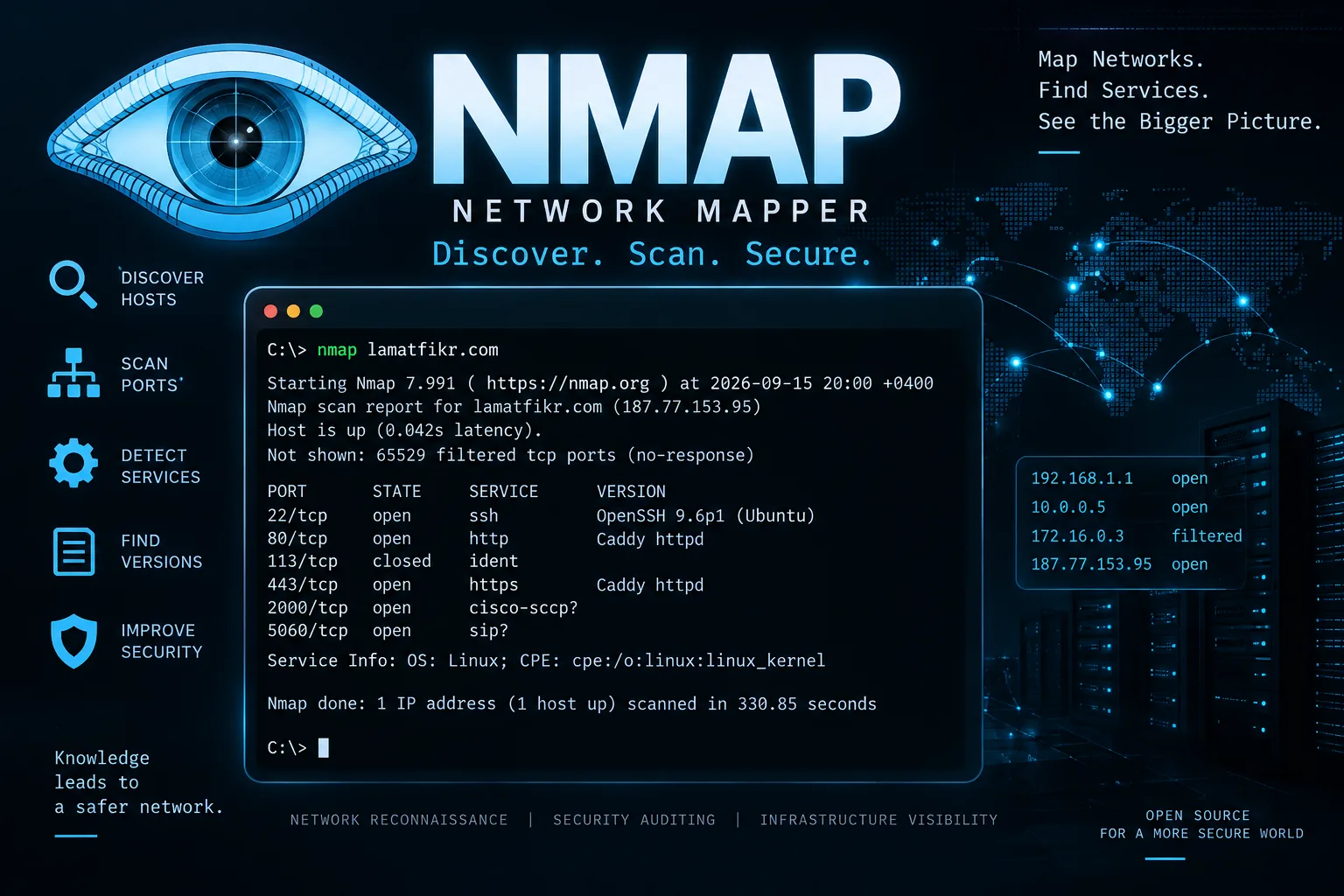 14 September 20265 minScanning ports and web servers using Nmap
Nmap is a prominent and widely used tool for scanning websites, networks, devices, and servers (such as HTTP, SSH, and SMTP) to identify open ports.
NNoah Alzakwani - Cybersecurity
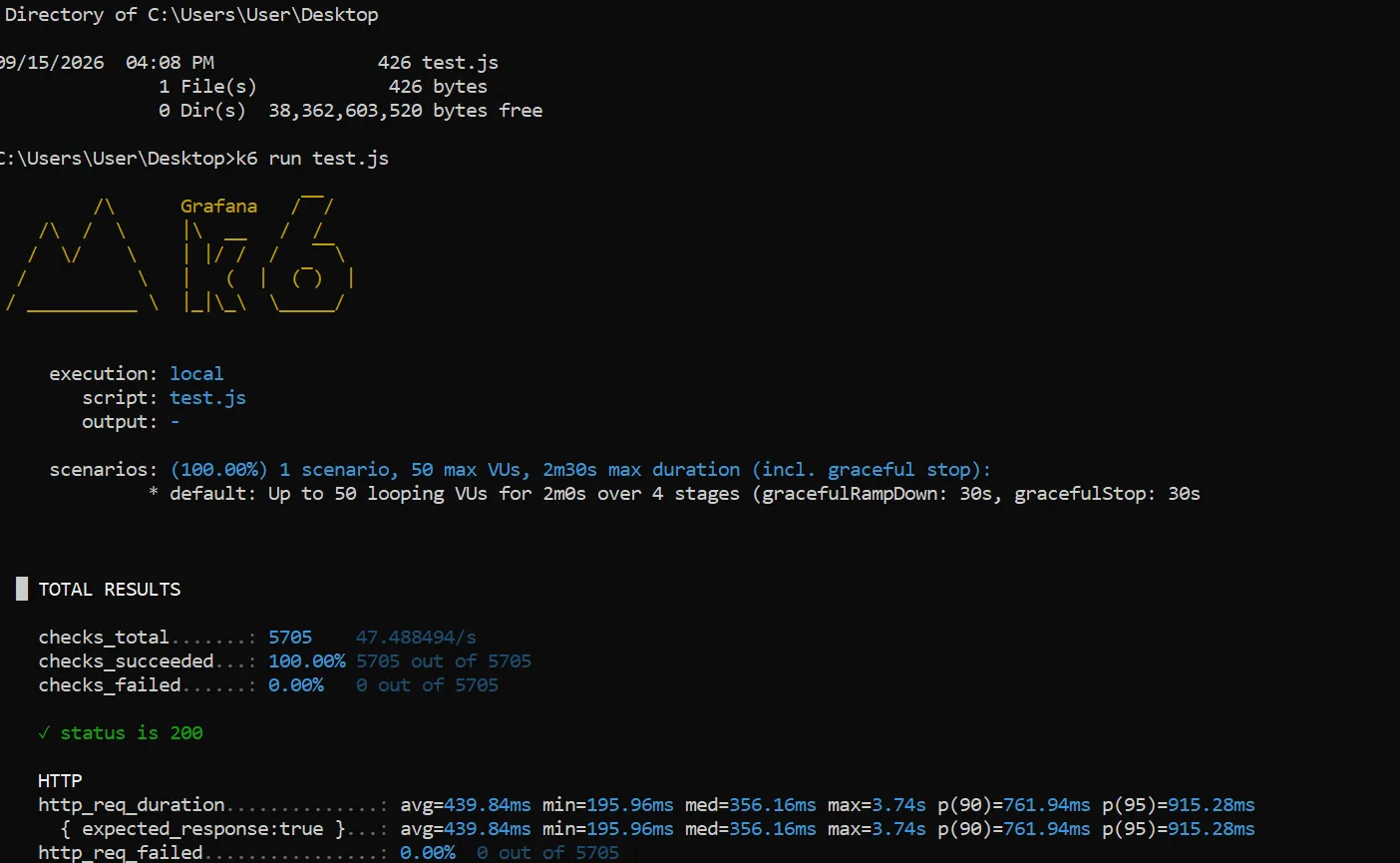 13 September 20265 minWebsite Load Testing
Before launching any website, you must test its load-bearing capacity to ensure it does not crash under the heavy influx of users.
NNoah Alzakwani - Cybersecurity
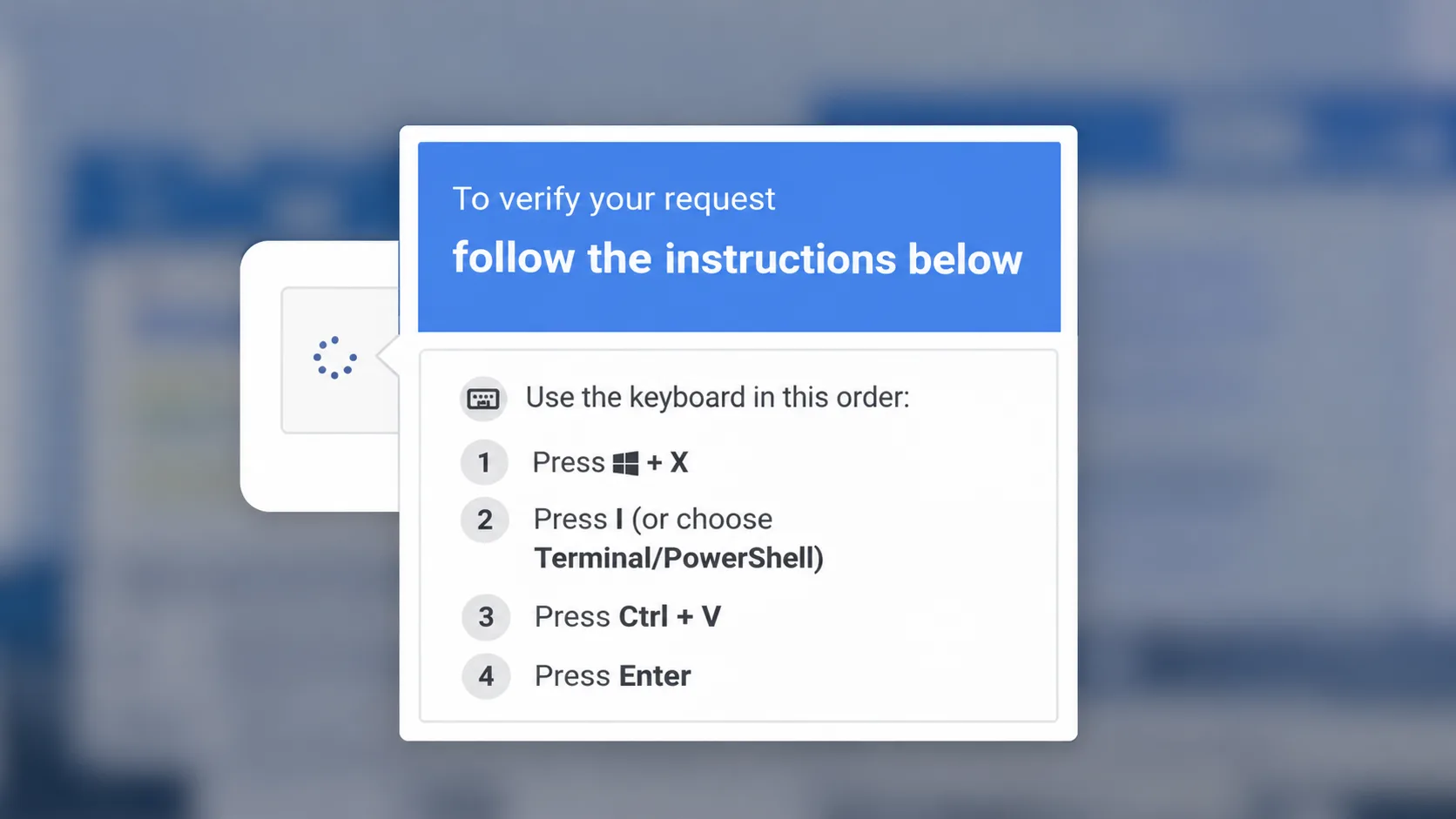 3 June 20265 minScam ClickFix or Captcha
A modern fraud method that usually appears to website browsers, where a pop-up screen, or what is known as a captcha, appears on the user’s screen to verify that he is not a robot or a robot.
NNoah Alzakwani